

GIF guide
How to compress a GIF without wrecking the animation
A GIF compressor is a tool that reduces GIF file size so an animated image loads faster, uploads more reliably, and stays inside platform limits. GifCompressor is a free online GIF compressor built only for animated GIFs: the output stays a GIF, with its frames, loop, and transparent areas intact. Results vary with dimensions, frame count, color count, and motion. Use the uploader at the top of this page, then use this guide when you need a smaller file for Discord, email, or a website.
What a GIF compressor actually does
GIF compression has one practical job: take an animated GIF that is too heavy and return a lighter GIF that still plays. GifCompressor keeps the output in GIF format, so chat apps, email, and CMS fields that require GIF still receive a GIF rather than a converted video.
Native GIF encoding already uses LZW compression. Extra savings usually come from simplifying color, sharing a global palette across frames, skipping redundant pixels between frames, and reducing width. Width is often the strongest lever. A 1080-pixel screen recording exported as a GIF can stay huge even after a heavy lossy pass, because every frame is still a full bitmap.
This tool does not convert the file into MP4, WebM, or animated WebP. If a host only accepts GIF, converting to video is the wrong answer. If the clip is long and photographic, a muted video file will usually beat any GIF compressor on size. Keep GIF when you need transparency, a short loop, or a format that works in chat apps and CMS fields that still reject video.
Free GIF compressor online, without Photoshop
You do not need Adobe, After Effects, or a local encoder for the common case. This free online GIF compressor lets you drop files in the browser, pick a tradeoff, and download the result. GifCompressor accepts up to 20 GIFs per batch, 25 MB each. Three files compress at once and the rest wait in order. No account and no payment are required.
To compress a GIF here: drop the files, choose Best quality, Balanced, or Smallest, optionally set a maximum width, complete the human check, then compare the measured sizes. There is no watermark and no desktop install.
Batch compression is useful when a landing page, changelog, or sticker pack has many loops. Keep one compression level for the whole batch so the results feel consistent. If one file barely shrinks, that source was already optimized; the compressor returns the original bytes instead of making the file heavier.
Reduce GIF size without losing the motion that matters
Reducing GIF size without changing any pixels is not always possible. Lossy compression changes some pixels, so the useful goal is to keep motion readable, keep brand colors close, and avoid banding that draws the eye. Start with Best quality. If the file is still too large, move to Balanced. Use Smallest plus a width cap when you have a hard budget.
Lower width before you crush color. A product demo with tiny type should stay wide enough to read. A reaction loop or emoji can drop to 128 or 256 pixels and still feel sharp. Screen recordings and gradients need gentler settings. Solid-color UI loops and stickers tolerate Smallest.
Always read the reported percentage. Some GIFs are already highly optimized. If a new encoding would be larger, GifCompressor returns the original file. That is the honest result, not a failed compress GIF job.
GIF compressor for Discord
A GIF for Discord usually has one of two jobs: act as a small animated emoji, or play as a clip posted in a channel. Those uses need different dimensions and may have different upload limits.
Discord limits can vary by upload type, account plan, and product changes. Check the limit shown in Discord before compressing. This compressor reports the measured byte size rather than promising an exact target, so you fit a limit by reducing width and choosing a stronger preset only when needed.
For a small emoji-style GIF, try a maximum width of 128 or 256 pixels and start with Balanced. For a larger channel clip, preserve enough width to keep text and motion readable. If the measured result is still above the limit shown by Discord, lower width before adding more lossy compression.
Compress a GIF to 1 MB, 5 MB, or 10 MB
A request to fit a GIF into 256 KB, 1 MB, 5 MB, or 10 MB means the destination has a file-size cap. There is no single slider that guarantees those exact byte counts, because palette, motion, and frame count still decide the outcome. The table below is a starting recipe, not a promise.
If a recording is still several megabytes after Smallest, the frames themselves are too large. Cap width first. A drop from 1080 to 480 pixels often does more than any lossy setting. Then re-run the GIF compressor and read the measured size before you upload.
| Target | Where it shows up | First setting to try |
|---|---|---|
| 256 KB | Small emoji-style uploads and strict forms | Smallest + width 128–256 |
| 512 KB | Some emoji and sticker budgets | Smallest + width 256–400 |
| 1 MB | Email signatures and many CMS fields | Balanced or Smallest + width 400–600 |
| 5–10 MB | Chat and email attachments | Balanced; cap width if needed |
| A few hundred KB | Inline web animation | Smallest + a sensible max width |
How this GIF compressor works
GifCompressor rewrites the GIF to reduce size while keeping the animation. Best quality uses a lighter pass. Balanced uses a stronger pass. Smallest uses the heaviest pass. If you set a maximum width below the source width, the file is resized before the new GIF is written. Timing, loop behavior, and transparency stay in the GIF.
The source upload is removed from the compression server after processing. The compressed result is stored so you can download it and, when storage succeeds, reopen the result link. Do not upload sensitive GIFs. The tool is a GIF compressor, not a private vault.
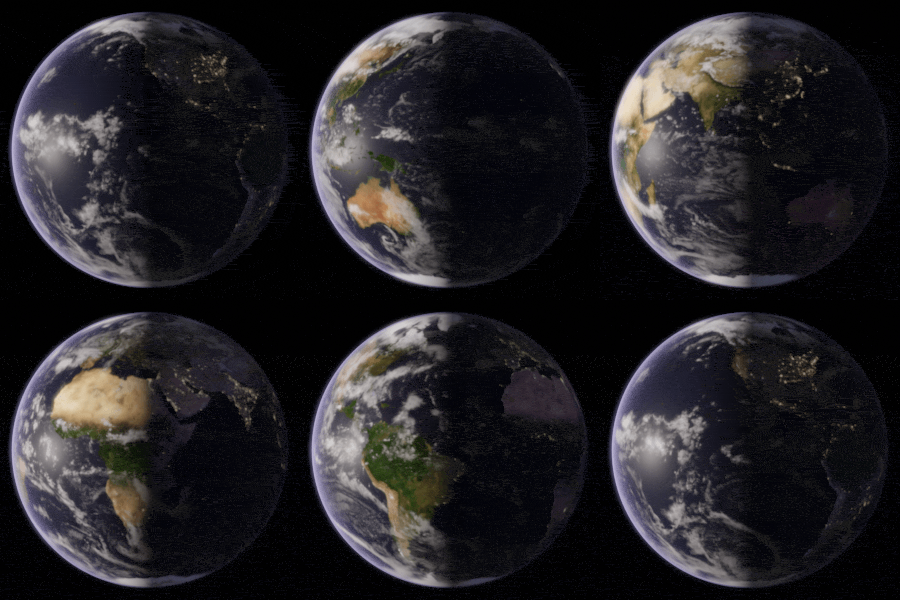
You will see original bytes, compressed bytes, and the percentage saved. Treat those numbers as the source of truth. Marketing pages that promise a fixed “up to 80%” hide how much the source already mattered. Our globe sample saved 39.8% on the Smallest preset; your file will differ.
Which compression level to choose
Best quality is for logos, product demos, and frames that contain text. Balanced is the default for most chat and web GIFs. Smallest is for emoji, stickers, and hard caps. If you only remember one rule: cap width for Discord emoji, then pick Smallest only after Balanced is still too large.
You can compress several GIFs with the same preset so a set of site assets matches. Replace a file, change the width, and run the batch again if the first pass is not small enough. The compressor keeps your files and settings when a single item fails, so you can retry that GIF without rebuilding the queue.
When a smaller GIF is the wrong output
If the “GIF” is a long, photographic clip, a compressed MP4 or muted WebM will be smaller at the same visual quality. Convert only when the destination accepts video. Keep GIF when the host only accepts GIF, when you need a transparent background, or when the loop is a short reaction, sticker, or UI motion.
Start at the top of the page, upload the file, cap width if you have a known limit, and read the measured result. GifCompressor stays focused on that workflow: free online compression with GIF as the output format.